polski
 español

 Monika Borowiec
Forget about using external tools, iframes, HTML code, and the hassle of embedding them on your portal. All you need to do is upload a previously prepared PDF file to the module, provide the title and a short description of the edition, and you're done!
With the E-editions module in CMS 4media, you will enable your portal's readers to easily, quickly, and comfortably read the latest newspaper edition online - without leaving your portal and without any additional pop-up windows. Magazines added to the module can be displayed in a dedicated widget, which you can easily place, for example, on the portal's homepage next to the news.
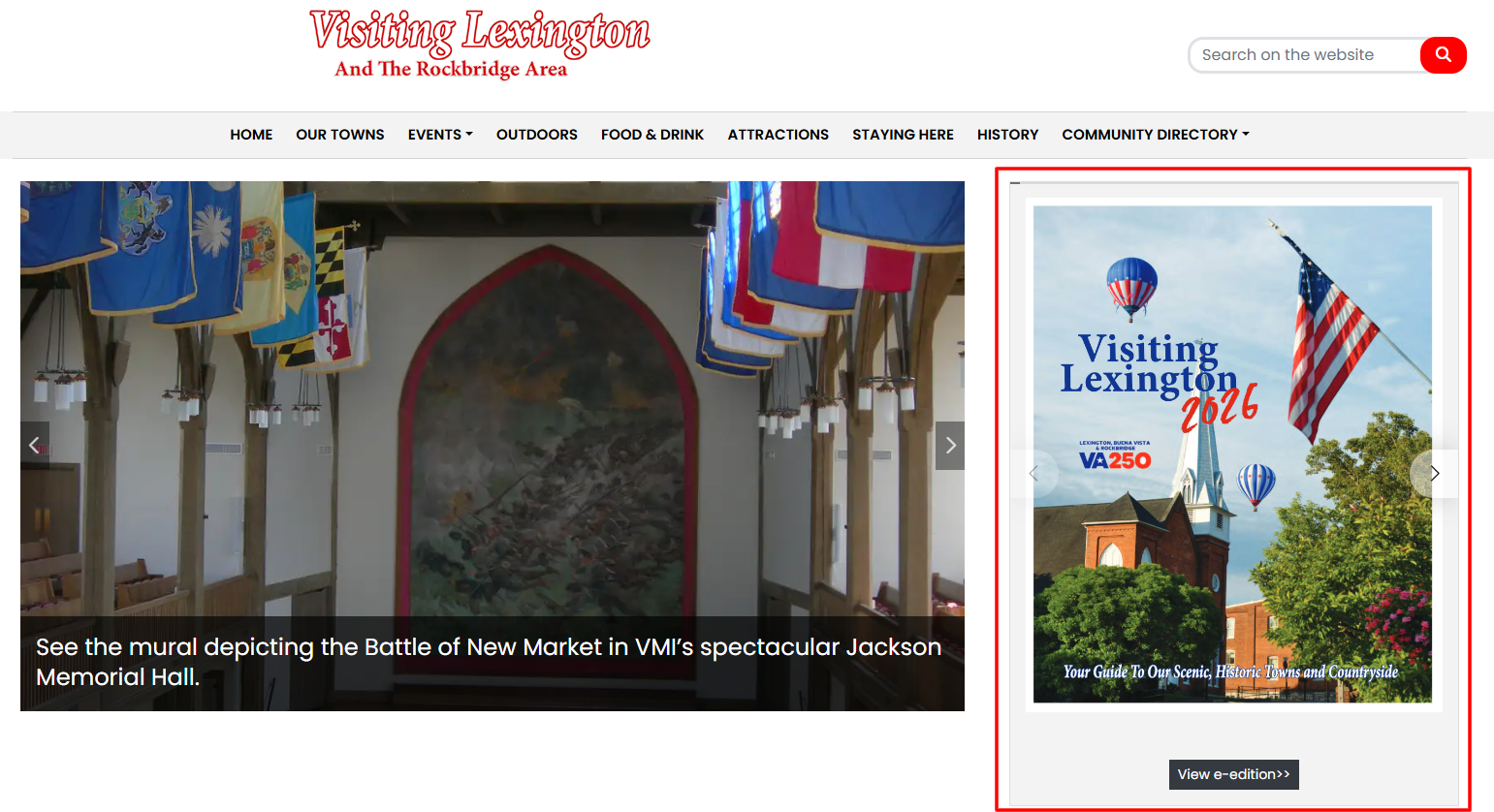
Using the arrows, users will be able to flip through pages and zoom in with a quick double-click of the left mouse button (or a double tap on a smartphone screen) to read smaller text. The widget also displays a button that allows users to go to the e-edition subpage and read it there in a larger window.
It is also possible to personalize the e-edition header and the options available in it. For example, we can add options such as download, share, or fullscreen mode. However, this will be covered later in this article.
Learn more about the widget configuration and capabilities:
Global module settings
Before you add your first e-edition, it is worth configuring the module's global settings. You can find them by going to the module [Settings] > [E-editions].
E-edition list display method - You have two options to choose from:

Available e-editions list display methods Default view - a list of e-editions arranged chronologically (the newest at the top of the list).
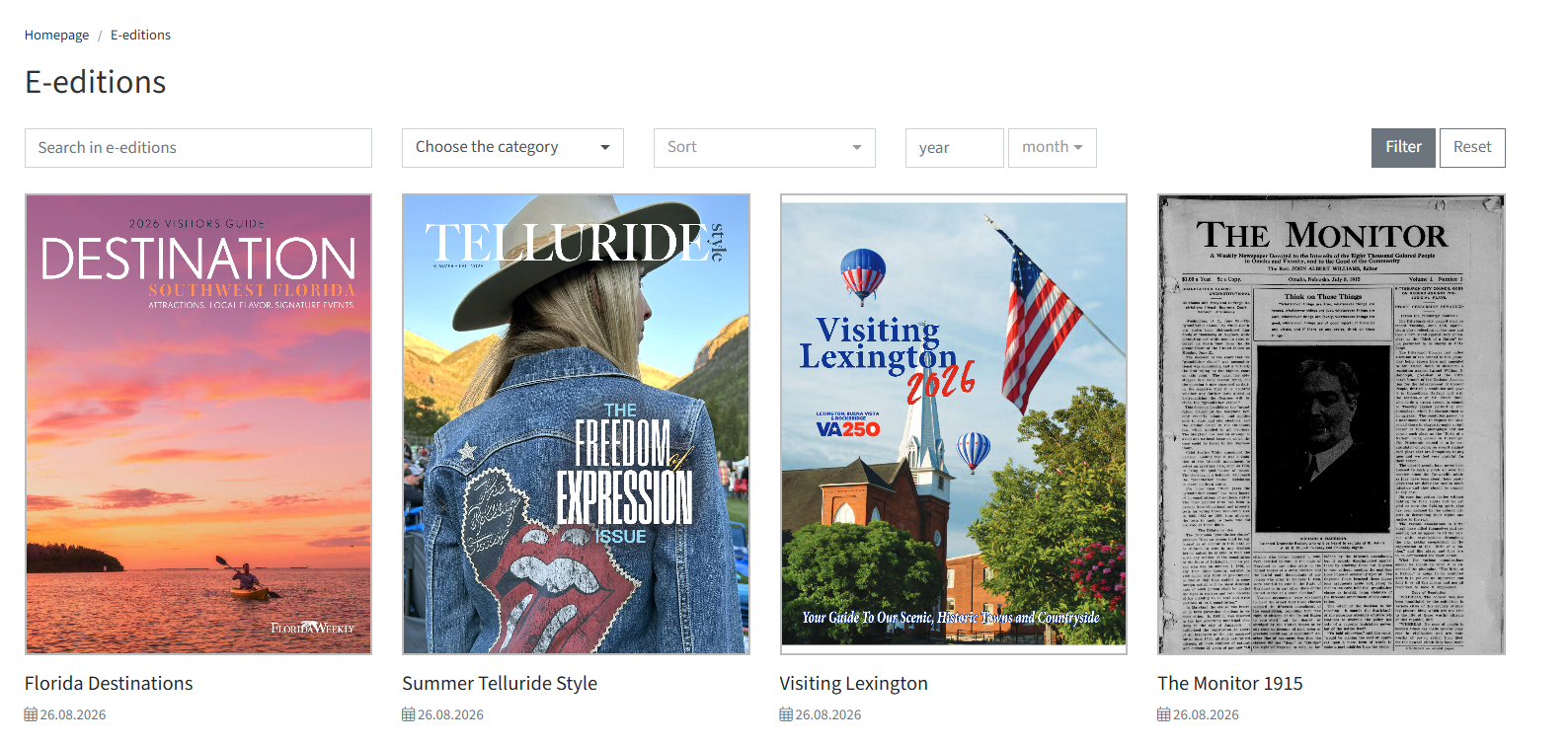
The default e-edition list view E-editions category list - division into press titles/thematic categories (requires categories to be created beforehand). E-editions not assigned to any category will go to a collective group for which you can enter a separate name (e.g. "Others").
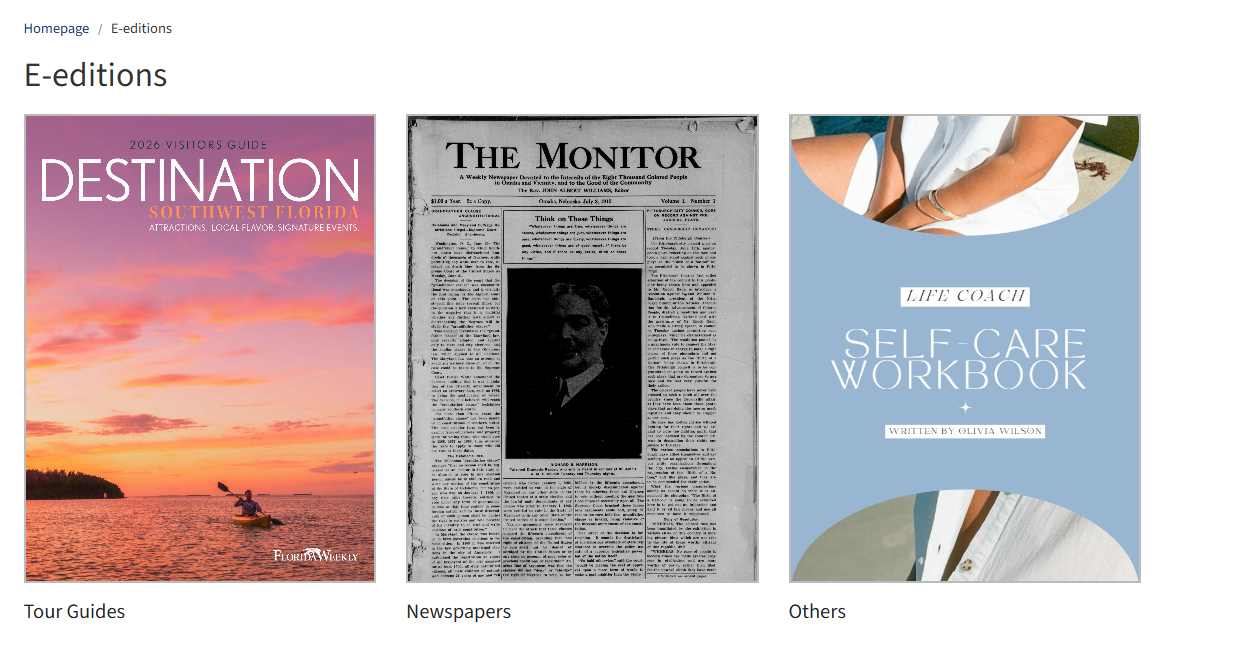
E-edition list view with category breakdown.
More about adding categories can be found in the article:
Aspect ratio in the e-edition list - This function allows you to adjust the proportions of covers presented in the list view. Available variants are: 16:9, 4:3, 1:1, 9:16, 3:4.
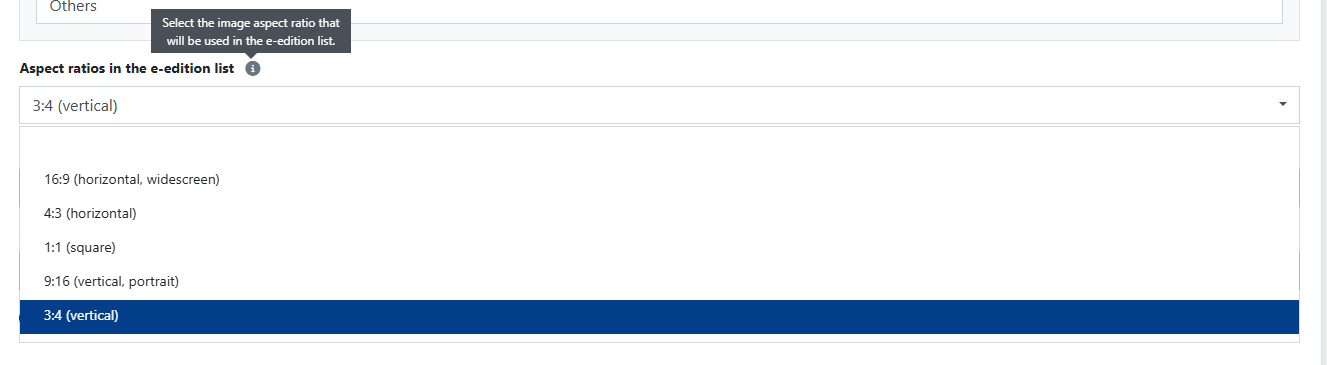
Available ratio options in the Admin Dashboard 16:9 variant
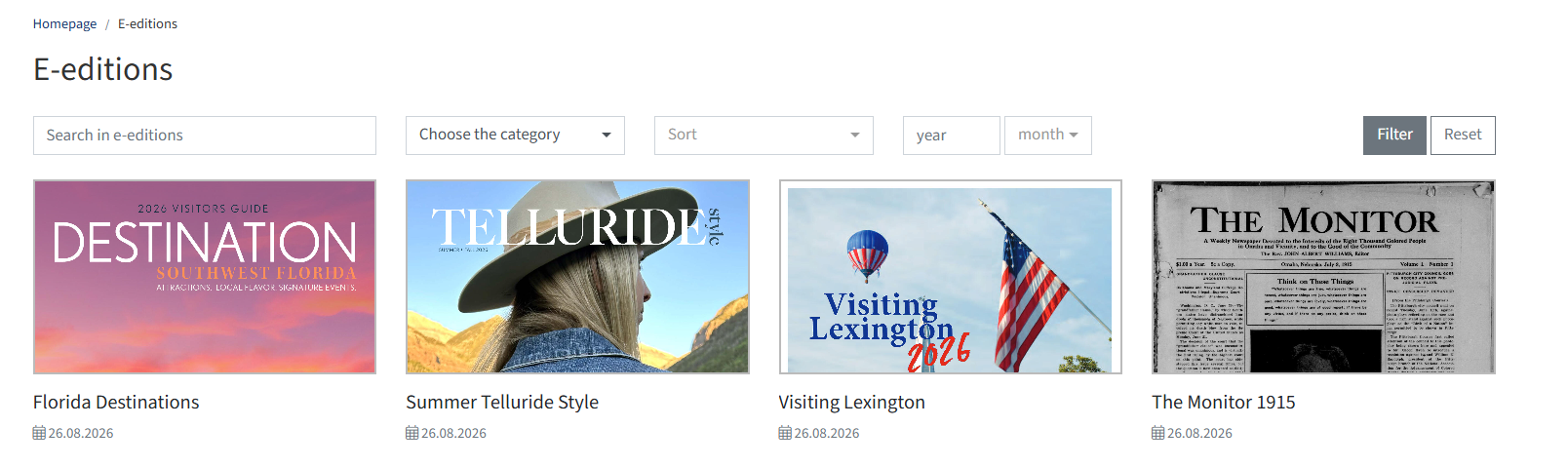
E-editions in 16:9 format 4:3 variant
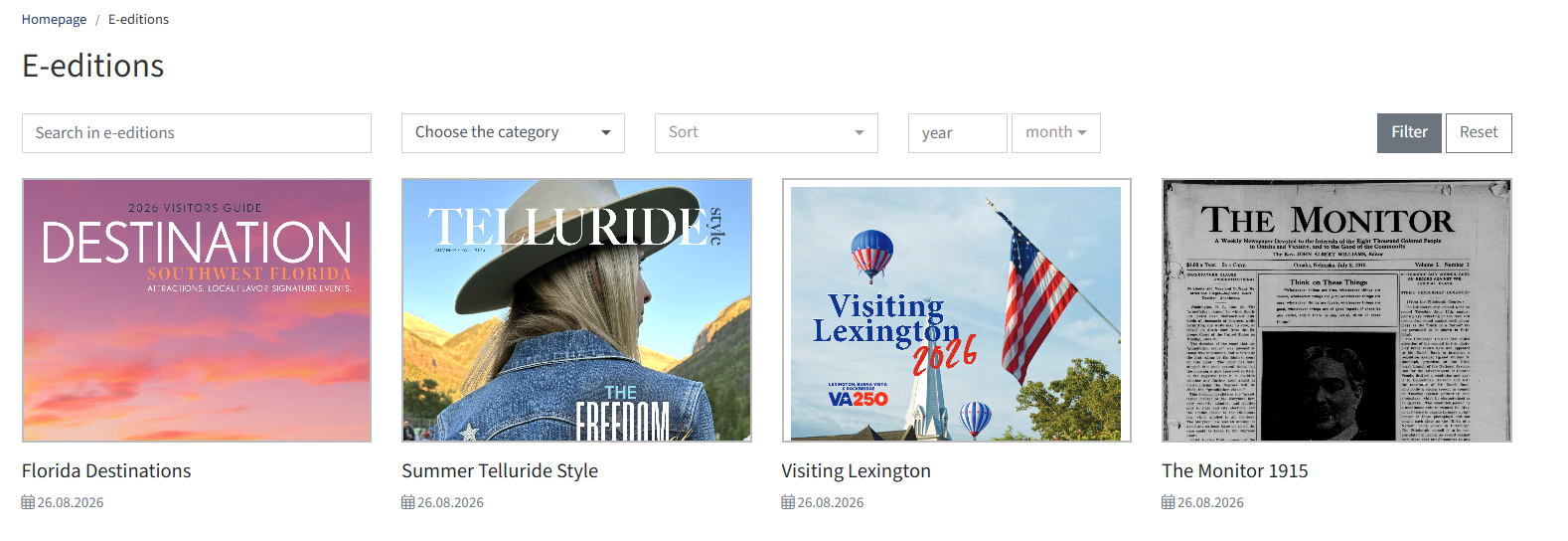
E-editions in 4:3 format 1:1 variant
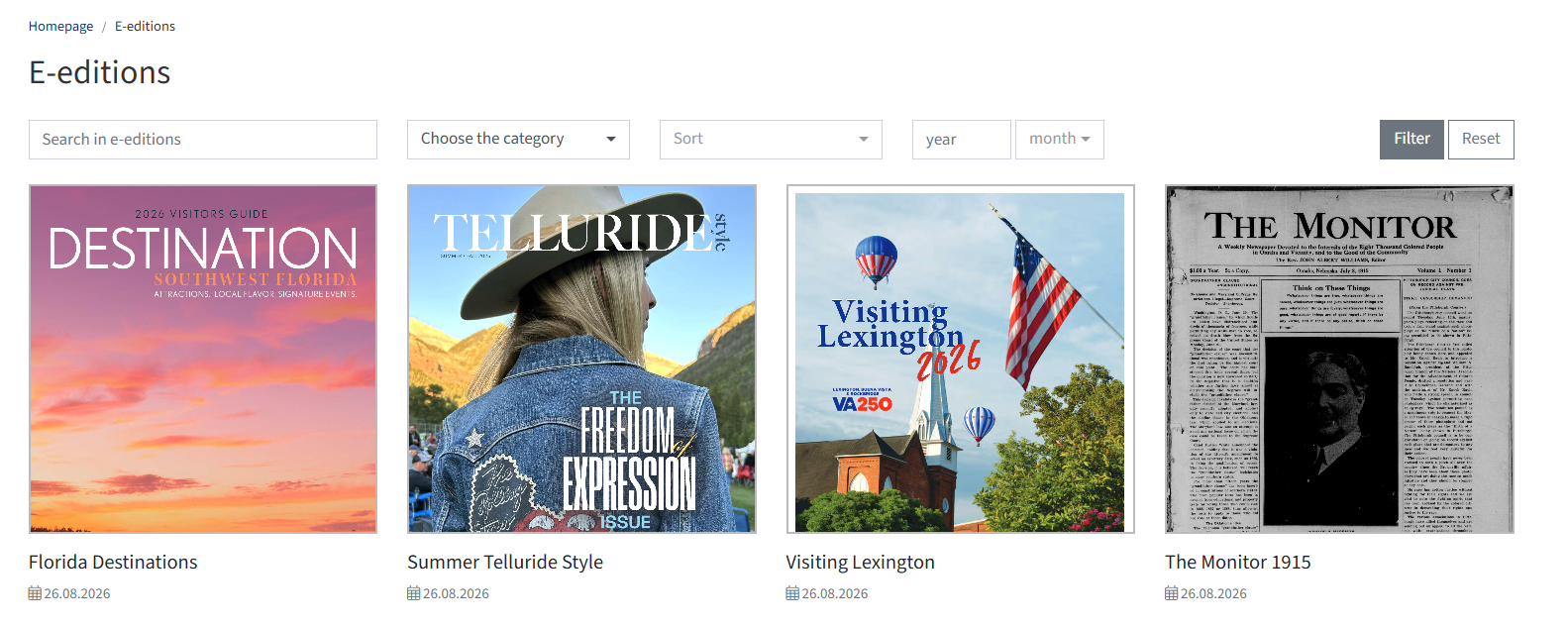
E-editions in 1:1 format 9:16 variant
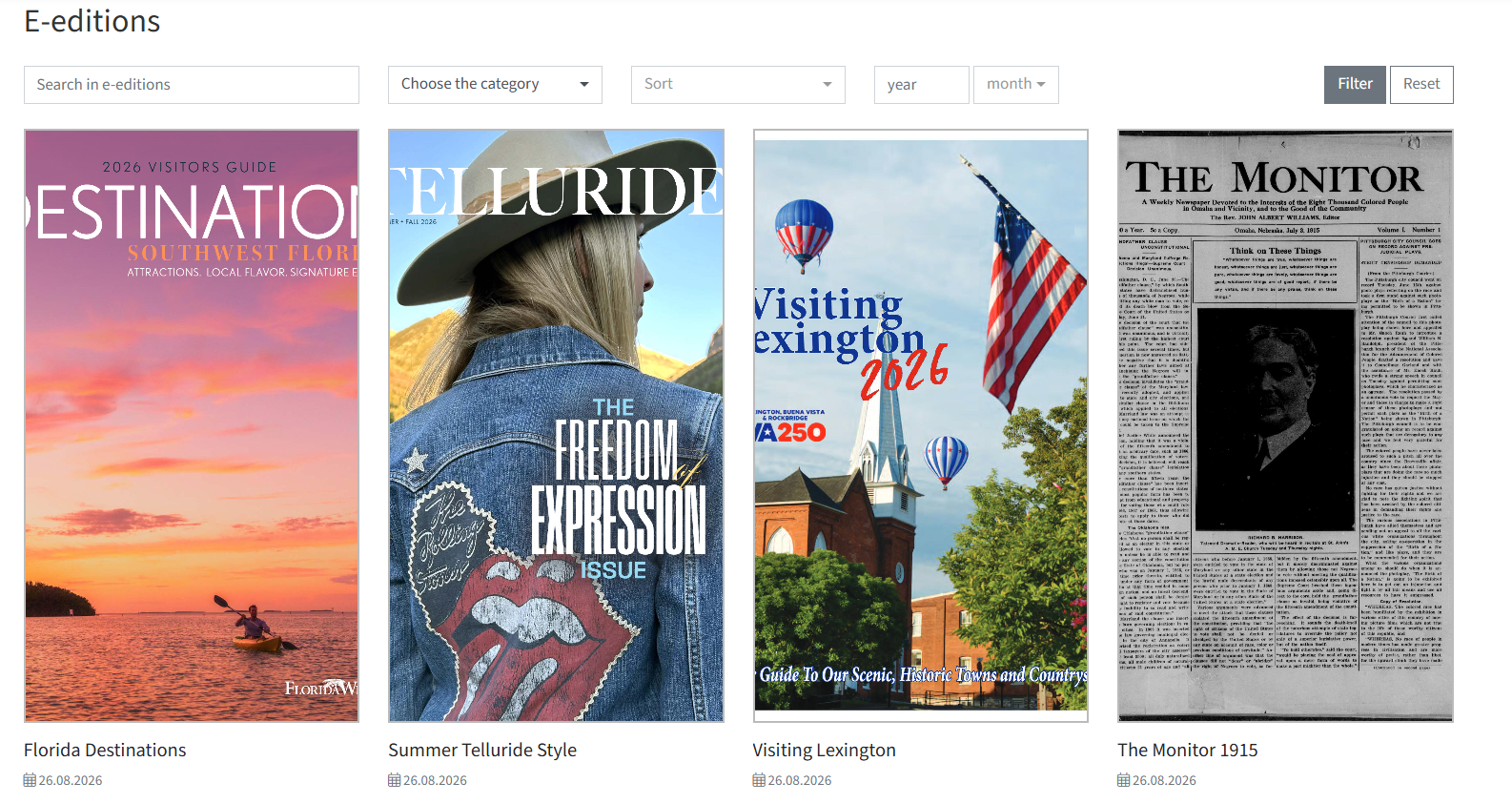
E-editions in 9:16 format 3:4 variant
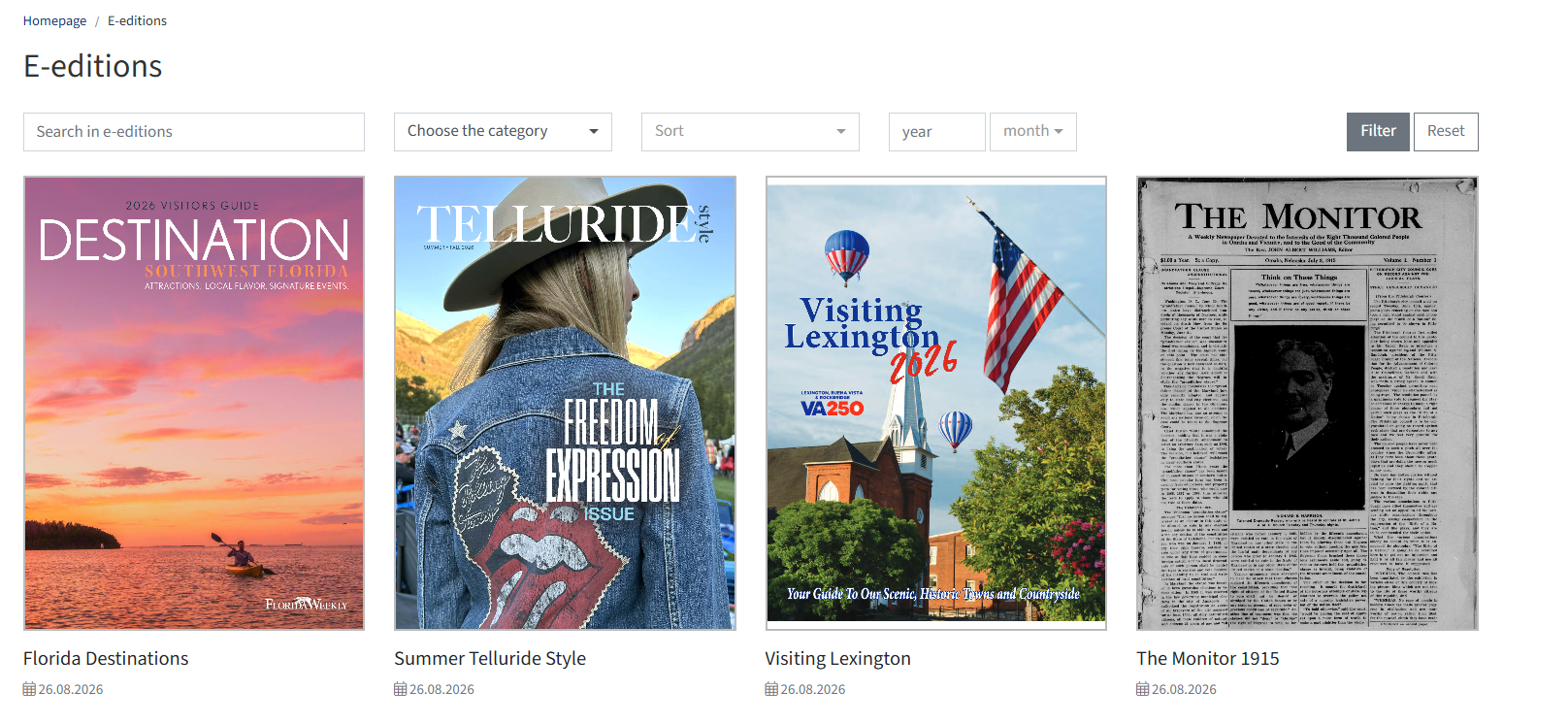
E-editions in 3:4 format New filters on the e-edition list - Activating the option [Enable filtering by issue year and month] will add two additional filters visible to readers. This makes it much easier for users to search for archived publications.

Additional filter fields - year and month Single e-edition display options - A package of functionalities that allows you to configure the default behavior of all e-editions:
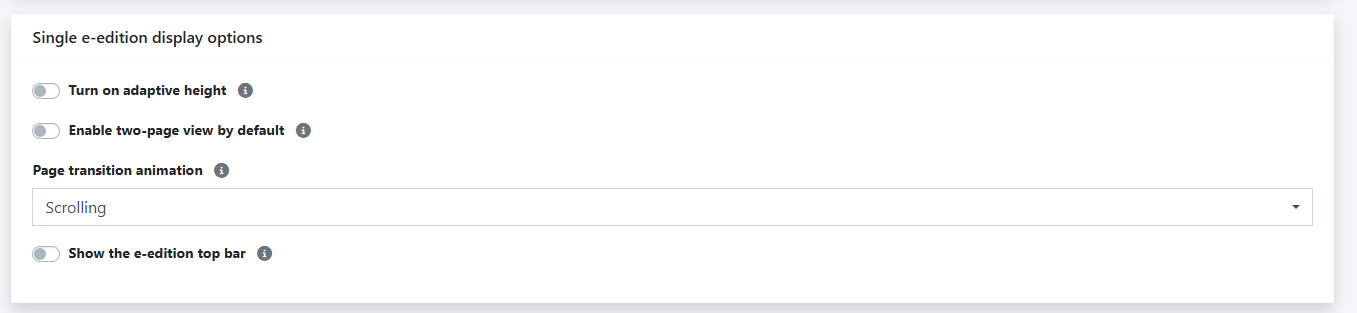
Single e-edition display options - applies globally to all entries. - Turn on adaptive height - the height of the viewed e-edition will be adjusted by default to the height of the reader's device screen.
Enable two-page view by default - All e-edition pages (except the cover) are presented in pairs side by side.
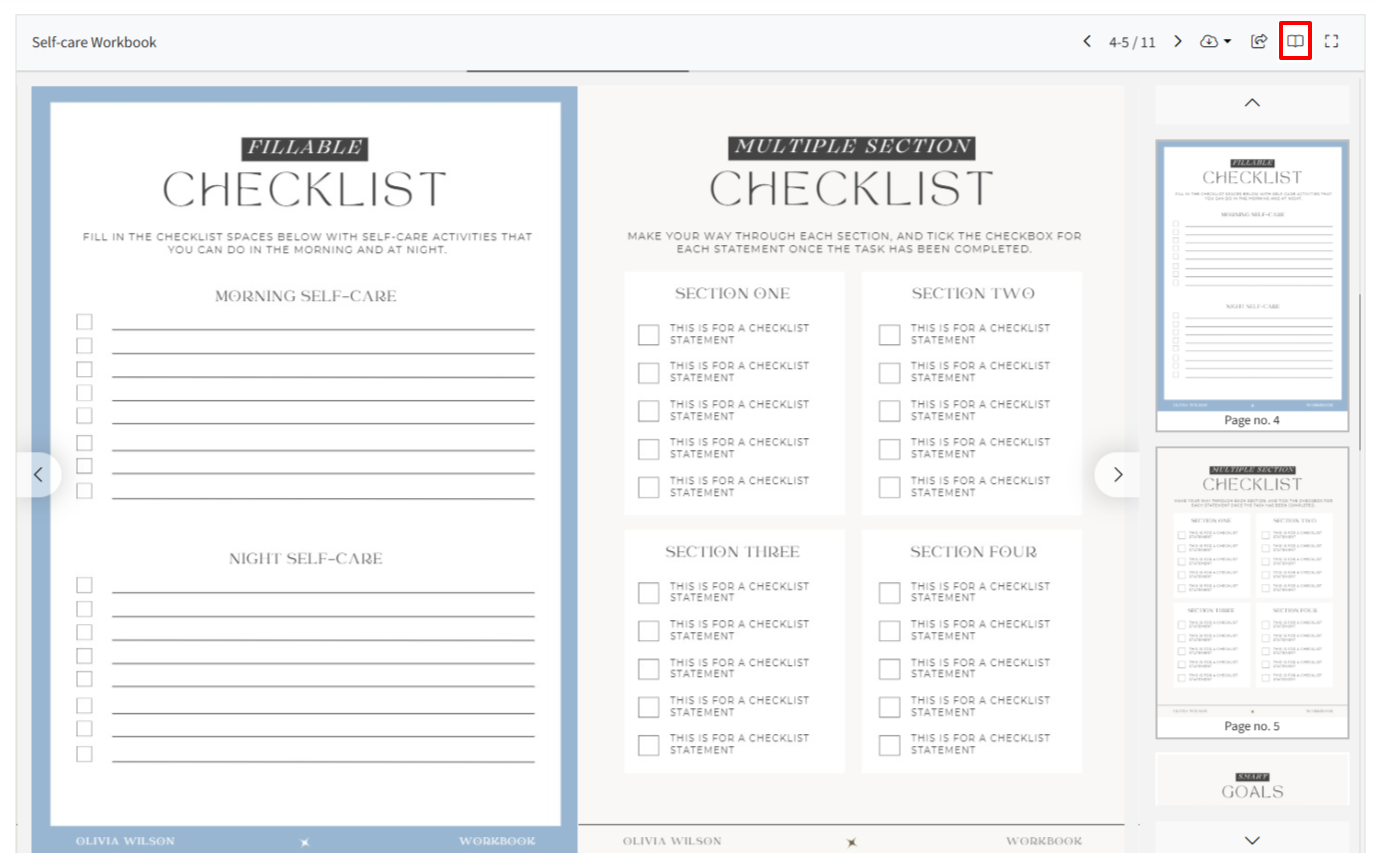
2-page view enabled in e-edition preview Important: You can also activate a button in the top bar of the e-edition that allows you to enable or disable 2-page mode. Available both globally and from the level of a single e-edition.
- Page transition animation - you can choose the animation style while changing pages; either Scrolling or Pervasion.
Show the e-edition top bar: activating the function expands additional options such as downloading, sharing, or fullscreen mode (you select the ones that should be visible by default).
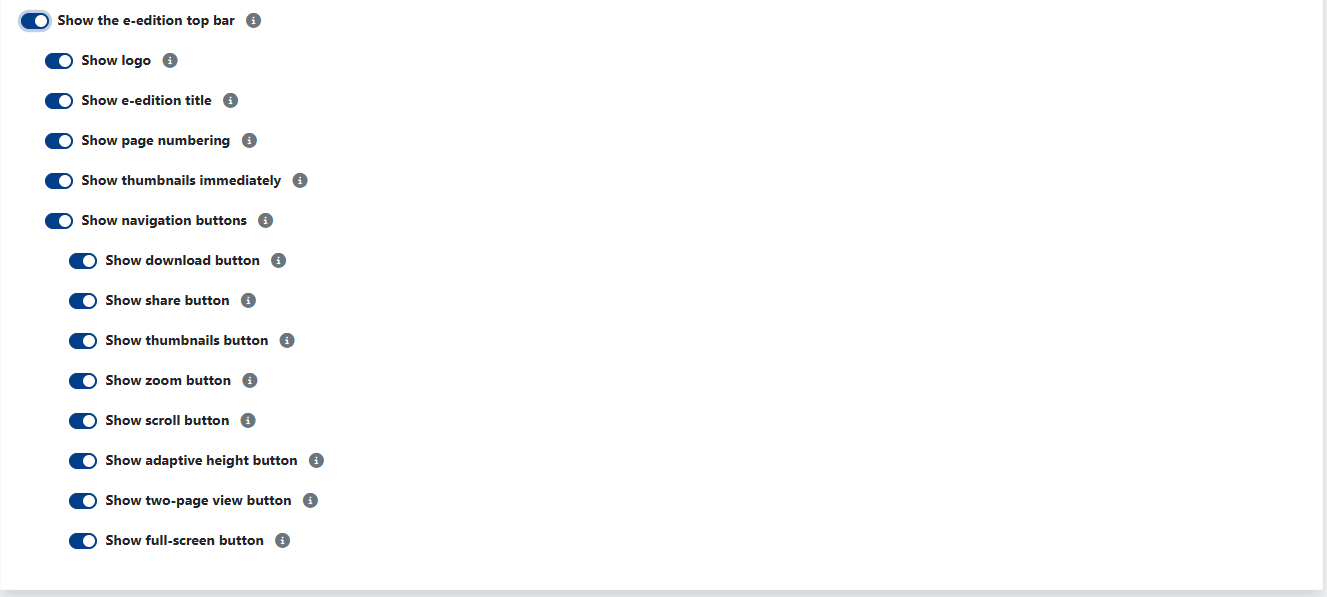
Available options for customizing the e-edition top bar (global settings) 
Options available in the top bar of the published e-edition Note: In the edit mode of any (single) e-edition, you always have the option to change these default settings.
Adding an e-edition
To add a virtual edition of your newspaper, log in to the Admin Dashboard and select the [E-editions] module. Above the list of editions, click the plus button in the upper left corner. A new form will open where you fill in the following fields:
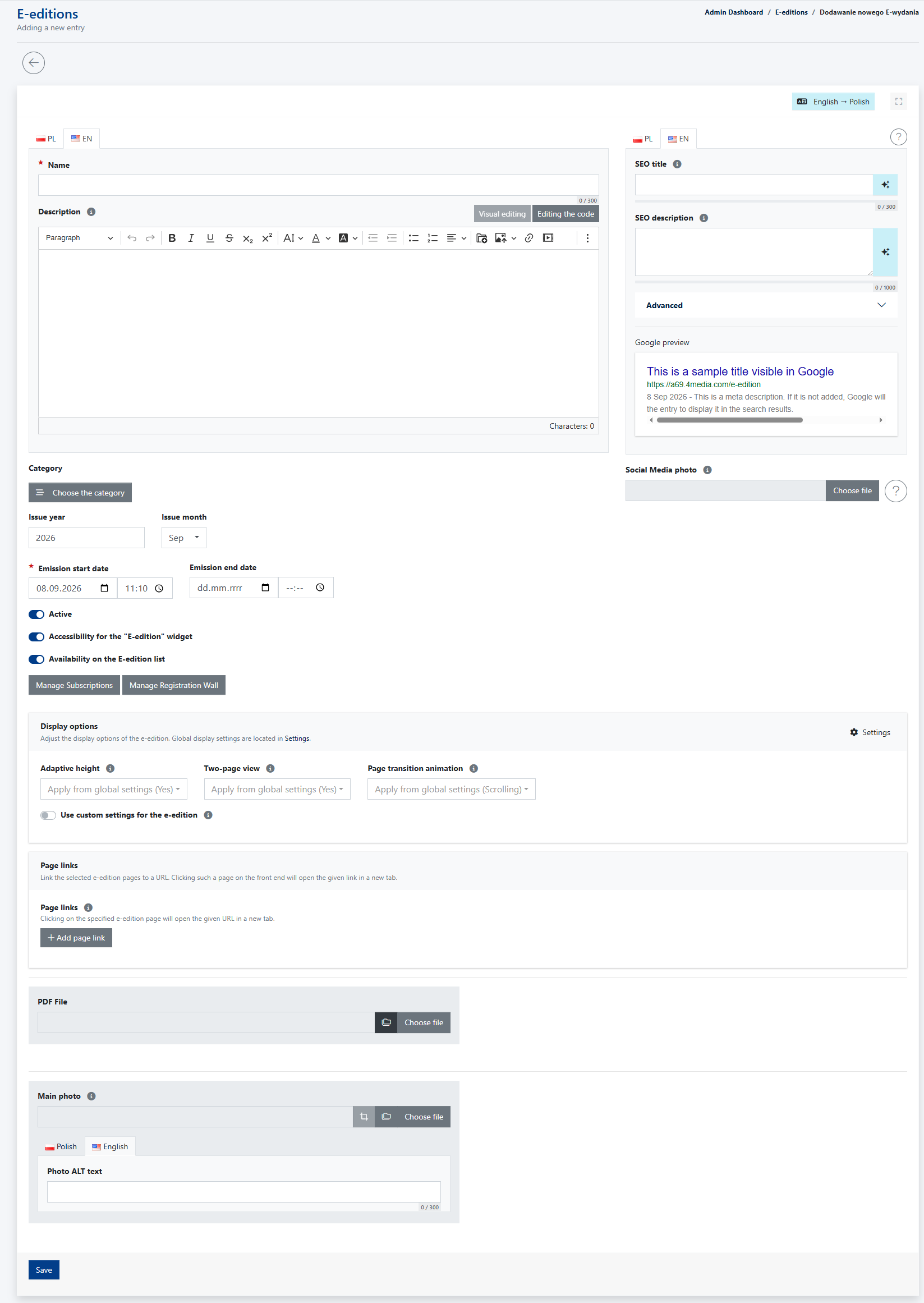
- Name - what you enter in this field will be the edition title.
- Description - content that will appear below the edition (e.g. a shortened description of the content, editorial contact details, or an invitation to order advertising).
- Category - allows you to assign the e-edition to a created group.
Important: Selecting a category is not required, BUT if the new list view (category list) has been selected in the global settings, assignment is necessary for the proper arrangement of publications.
Publication year and month - specifies the period from which the file comes.
Important: They are required if additional filters (by year and month) have been activated in the global settings.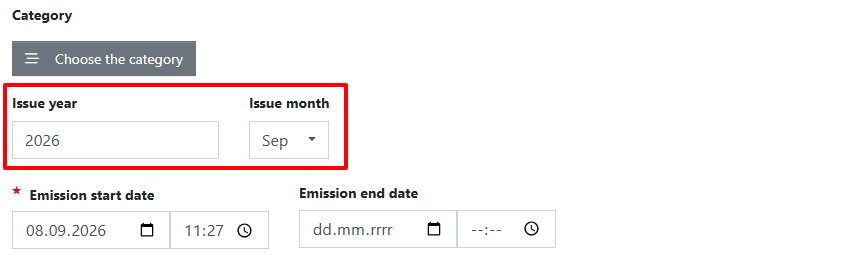
Publication year and month fields in the e-edition edit form. - Emission start / end date - specifies the time frame during which the e-edition is published on the portal. In other words, whether it is visible to readers. Setting the start date to a future date allows you to schedule the publication of the e-edition.
- Active - by moving the slider to the right (it will light up blue), you activate the visibility of the edition regardless of the publication timeframe. Only active e-editions are displayed on the portal and in the widget. This function is useful when an entry should be hidden immediately until manual reactivation.
- Accessibility for the [E-edition] widget - allows this specific issue to be displayed in the dedicated widget. Unchecking this option excludes the given publication from the widget, making it impossible to select it.
- Availability on the E-editions list - determines whether the document will appear on the main archive list of editions (/e-editions).
Manage Subscriptions / Registration Wall - the E-editions module is integrated with the [Paywall] module. Thanks to these buttons, you will go to settings where you decide whether the publication should be available to everyone or only to subscribers or logged-in users.
More about the [Paywall] module can be found in this article:Display options (Individual settings) - Here the global settings (configured in [Settings] module) are visible.
By checking Use custom settings for the e-edition, you can enforce different options for this specific document, such as enabling/disabling Adaptive height, activating the E-edition top bar (and selecting which functions it will contain), and using the Show navigation buttons option independently from other entries.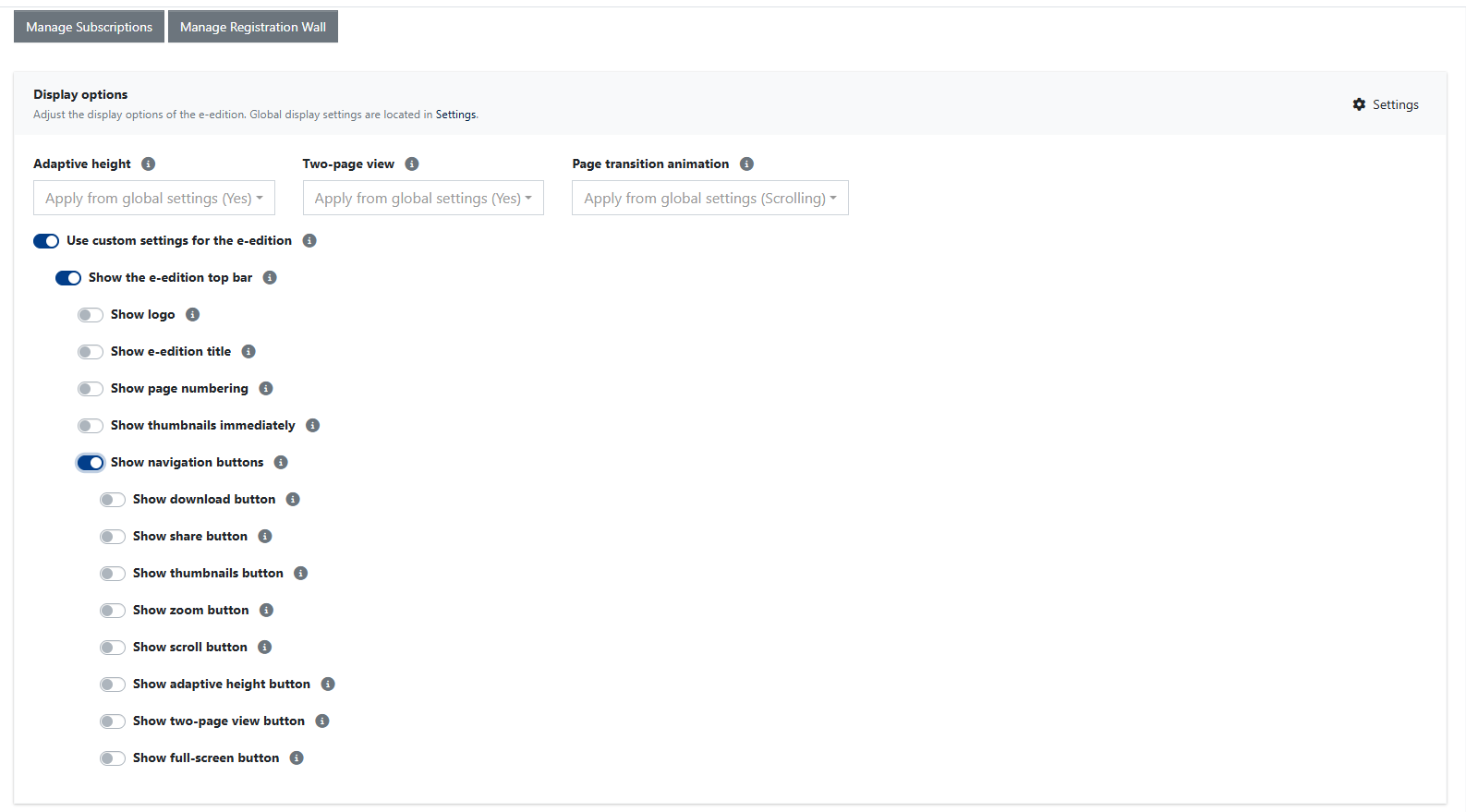
Display options only for the e-edition currently being edited. PDF file - by clicking "Choose file", you upload your PDF file from disk. Alternatively, you can select such a document from the CMS' [File Browser] if it has already been uploaded there earlier.
More about the [File Browser] can be found in this article:- Main photo - upload your own thumbnail/edition cover here. It will replace the first page of the publication. Remember to fill in the alternative text to improve the SEO rating. Again, it is possible to upload graphics directly from your computer or from the [File Browser].
E-edition subpage and Sharing Function
The e-edition subpage is created automatically after uploading the PDF file, filling in the required fields, and saving the changes. (If the Emission start date is a future date, the document will not be visible on the portal until it arrives).
The e-edition gets a unique URL address. Users visiting this address will see your publication embedded in a large, intuitive viewer.
Depending on the configuration in Display options, readers will be able to use the top bar to, among other things:
- See the number of pages and navigate through them using arrows, the mouse slider, or thumbnail preview.
- Download the entire issue, a specific page, or a fragment of it.
Zoom in or out on the current page and switch to fullscreen mode.
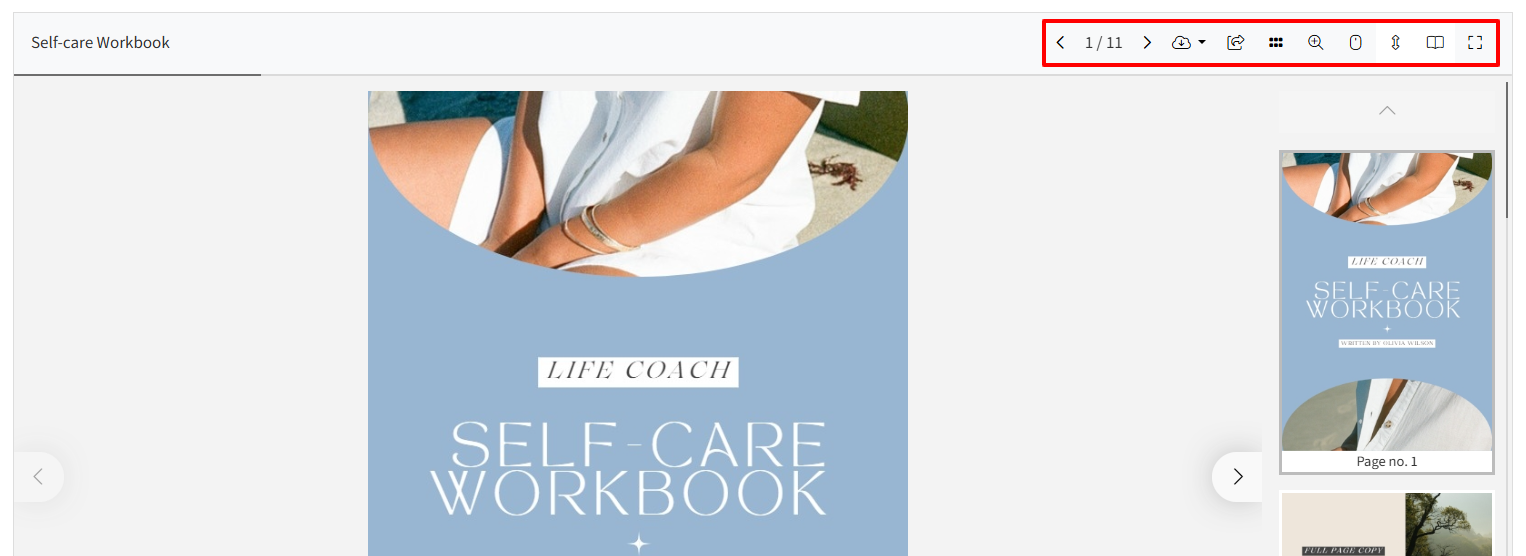
Top bar on the e-edition subpage
Share function It provides broad possibilities for promotion and content sharing.
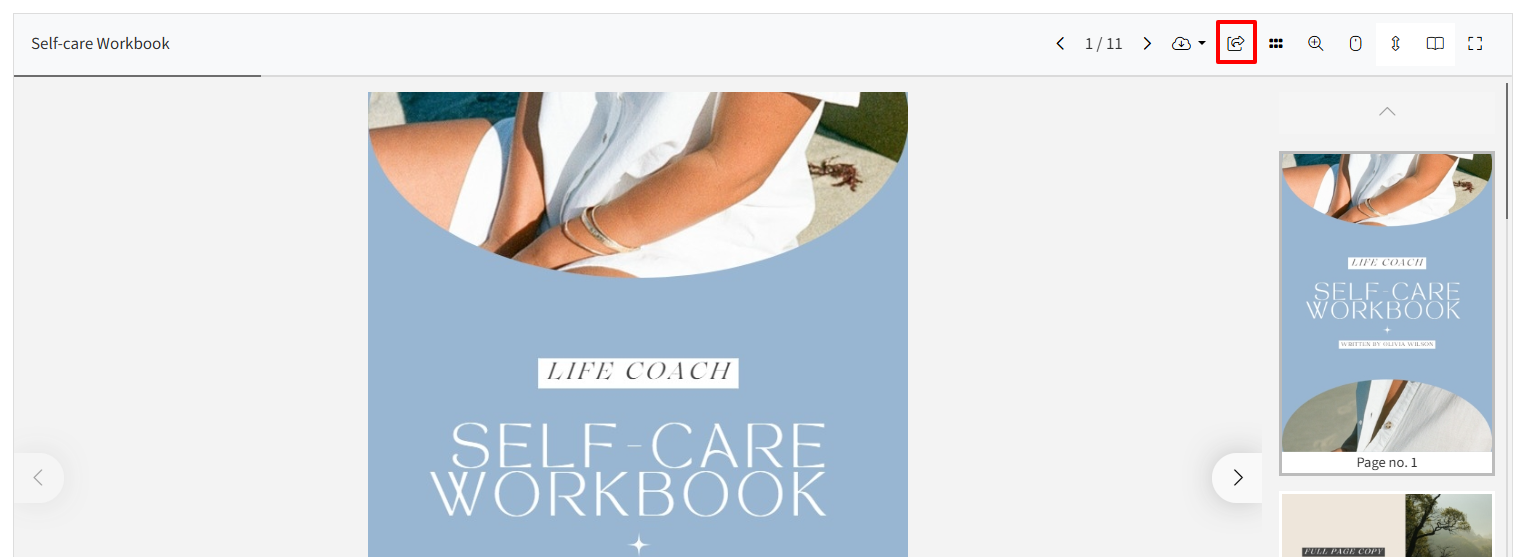
The button opens a pop-up window with the following options:
Share on social media / Email: direct redirect to a specific social media service (Facebook, Twitter/X, LinkedIn) or mailbox.
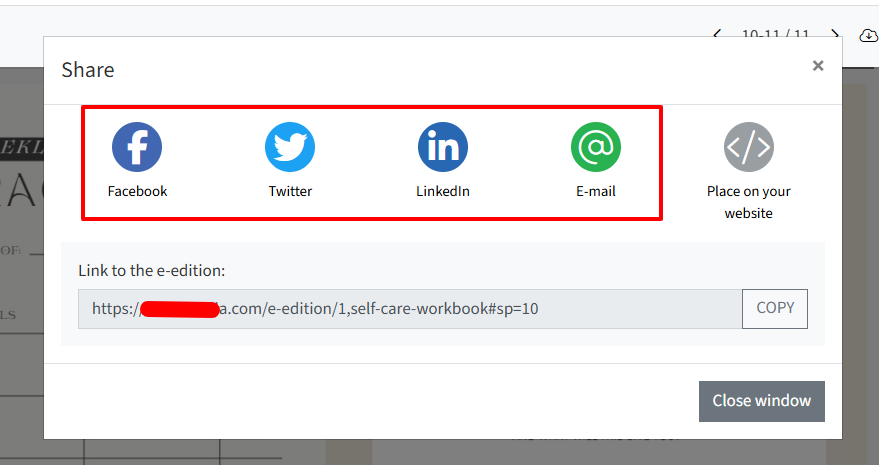
Sharing functions on social media portals and by email. Copy the link to the e-edition: click the [copy] button and share the URL to the document (an alternative to copying from the browser bar).
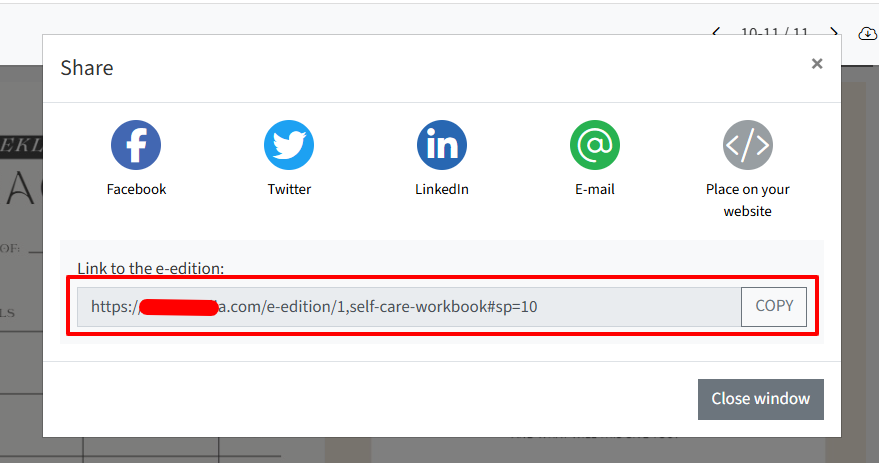
Button for copying the link to the e-edition. Embed on your website (i-frame code): after clicking, you get ready-to-copy HTML code that can be placed on an external website in the form of an embedded frame.
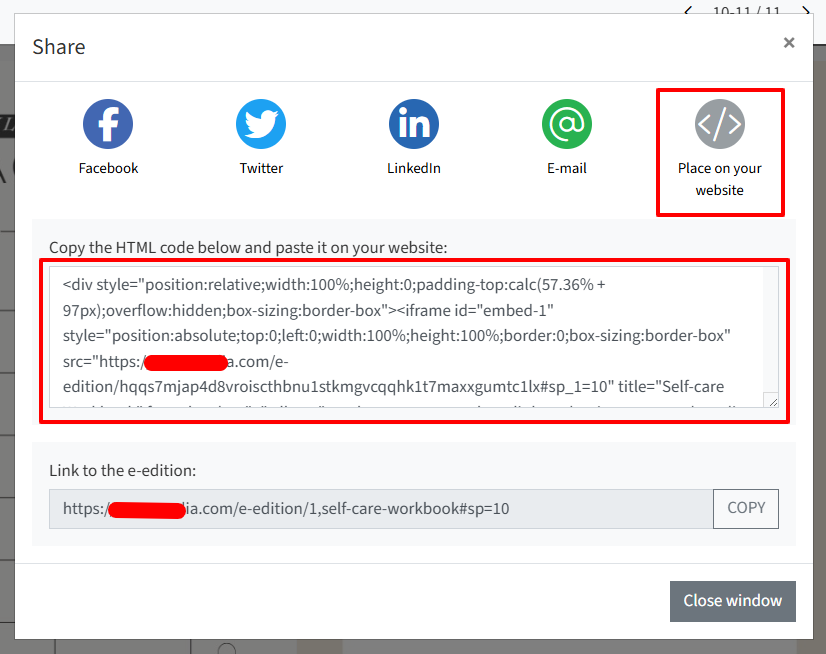
Generated iframe code for embedding on an external site.
IMPORTANT! Before using the sharing option, pay attention to the e-edition view. If you want to share (e.g. send someone a link to) the view of a specific page, first make sure that the document reader is opened exactly on that page!
List of all e-editions (/e-editions)
Once you have added publications, the CMS will create a dedicated subpage for all editions (address: /e-editions). It displays published e-magazines – depending on your global settings – either as a chronological view of the latest tiles or divided into thematic category blocks discussed in the Global module settings section at the beginning of this article.
Managing the e-editions list in the Admin Dashboard
All publications added to the portal can be found in a table after entering the E-editions module in the CMS. Here you will be able to check the title, date added, and the number of views of a given subpage.
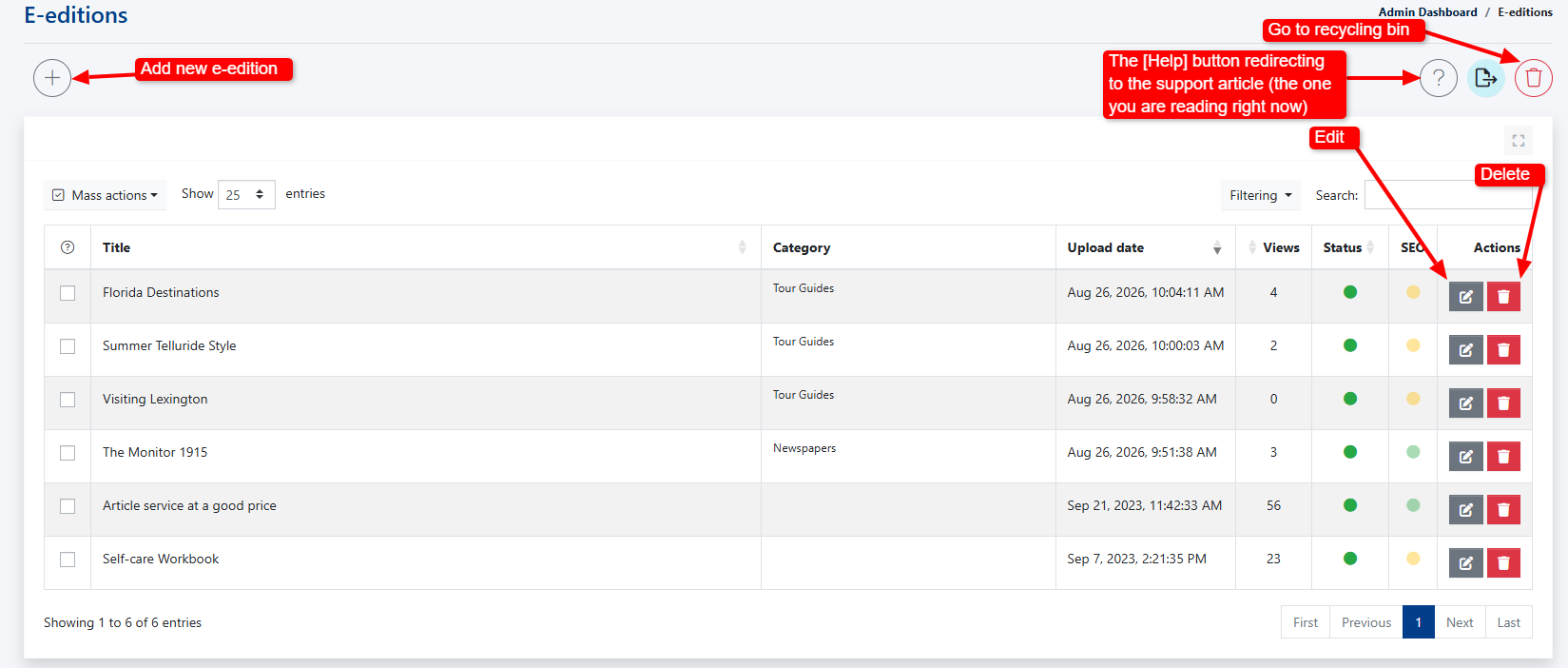
At any time you can:
- Edit details by clicking "Edit".
- Move the file to the trash by clicking the red recycling bin icon right beside the entry you wish to get rid of.
Use Mass actions, which make it possible to activate/deactivate or delete selected items on the list with one click.
Important: Before using Mass actions, it is necessary to select the items on the list to which they should apply by checking the checkboxes on the left side: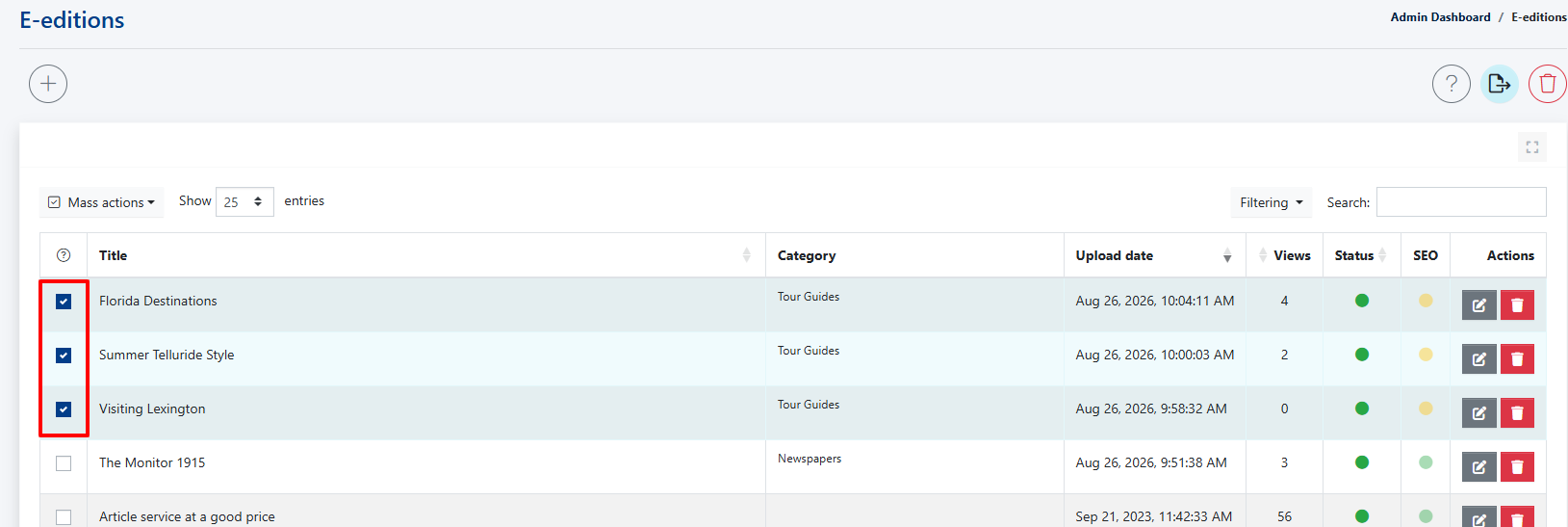
Selected items on the list for the use of bulk actions 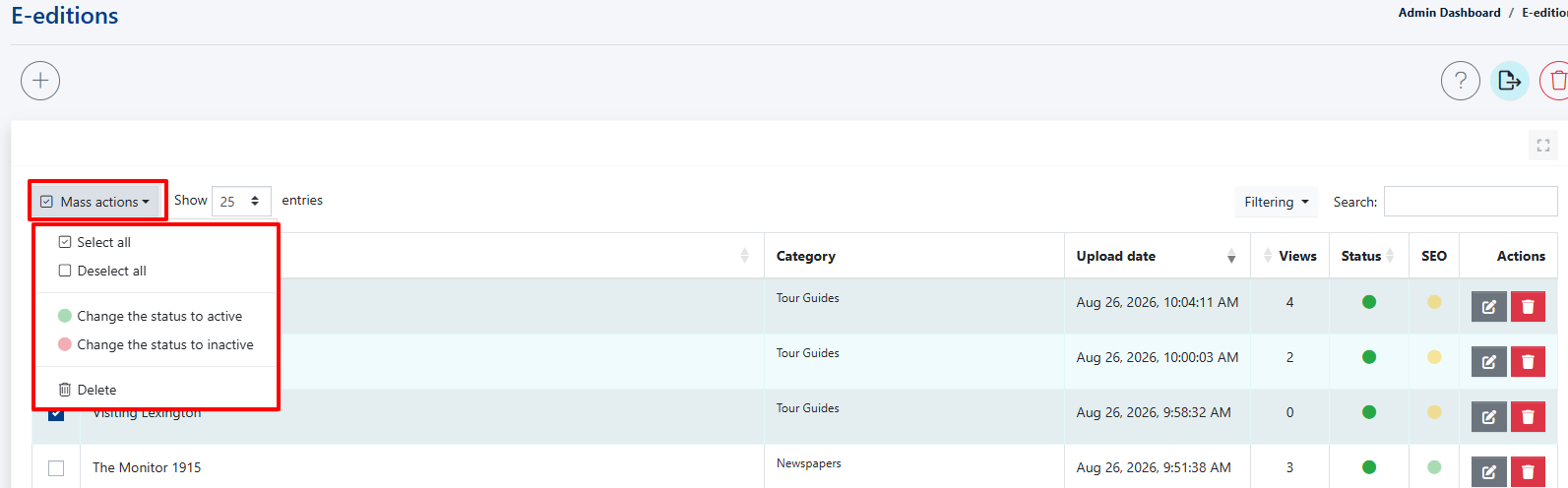
Options available in bulk actions.
Importing content from the newspaper to the portal as separate articles (XML Export)
An interesting option available in the E-editions module is also XML export to articles - it enables automatic addition of articles based on uploaded XML files in .zip format.

Thanks to this option, you save time - because you do not have to rewrite articles that you have already published in your print newspaper. It is enough that you first prepare its digital copy in XML, send it through the E-editions module, and the CMS 4media system will automatically recognize the content, sort it into proposed articles, which you will be able to assign to categories, change main photo, mark as promoted or specify whether it is visible in the Slider or not.
The process is divided into 2 steps:
Uploading a new ZIP file

Uploading a new ZIP file 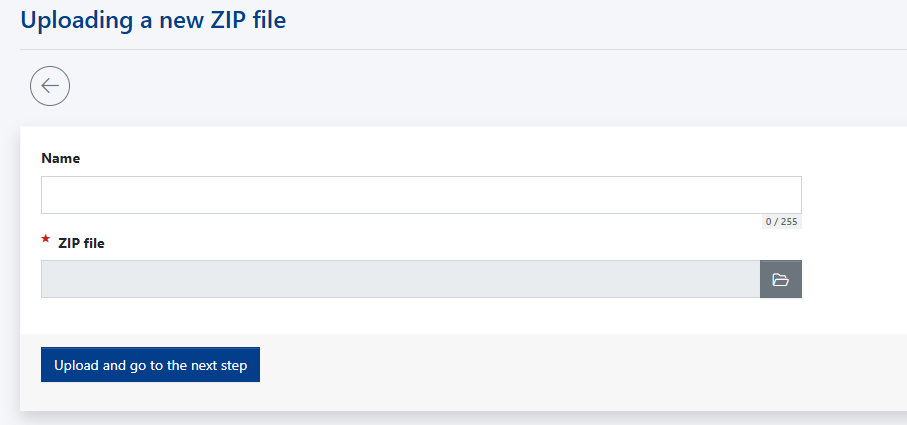
Step 1: Uploading a zip fil with XML content inside. Click the grey folder icon to select a ZIP file from your computer. In the [Name] field, enter the title that will appear only in the admin dashbard and will not be visible to readers. This title is used for editorial purposes, helping the editorial team identify the contents of the uploaded ZIP package.
Then click [Upload and proceed to the next step].
Mass export of articles
The form will reload and display the following view:
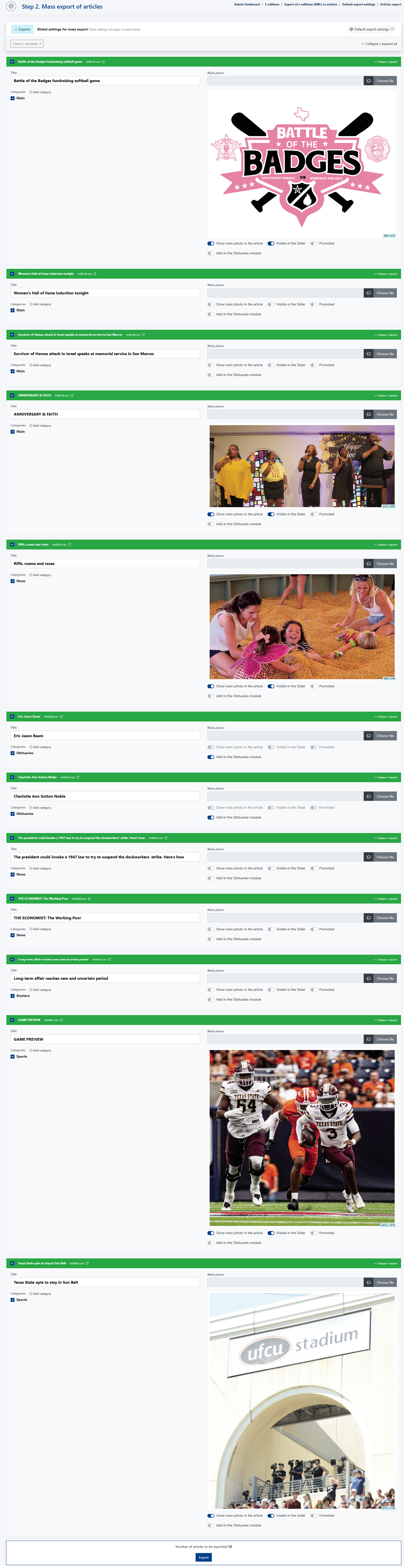
This is where you decide which entry will be exported and whether you want to change its main image, assign it to different categories, or specify whether it should be promoted and displayed in the [Slider] widget.
Having configured all entries, click the blue [Export] button at the very bottom to finalize the process. All entries will be exported to the [Articles] module (or [Obituaries] if selected) where they can be further customized.